
Your WordPress website may contain a Google Map, and it’s not uncommon to see a map with the error “This Page can’t load Google maps correctly”. There can be many reasons for this, but the most likely reason is that you do not have a Google API key installed with the relevant API permissions set.
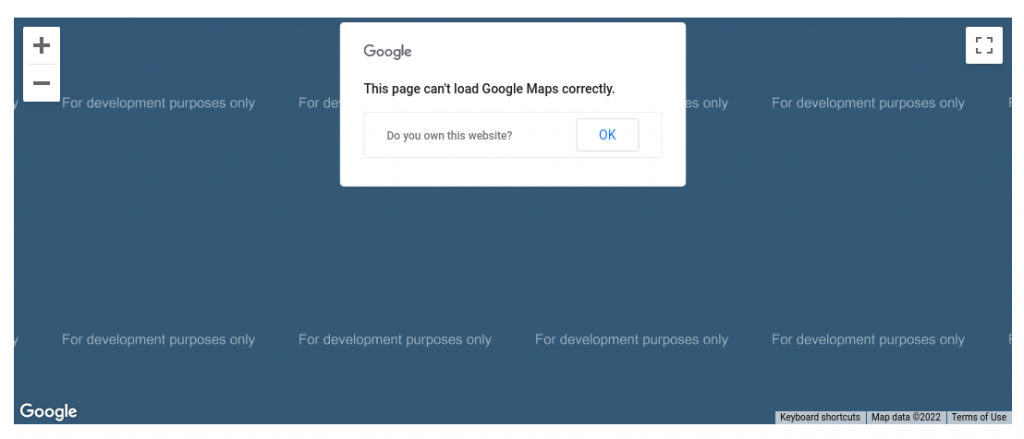
The short guide gives you the basic method for acquiring an API key. The method for setting this will depend on how your website is configured. We also include instructions for installing the API key on a Divi Website.
Navigate to the Google API Console and Create a project
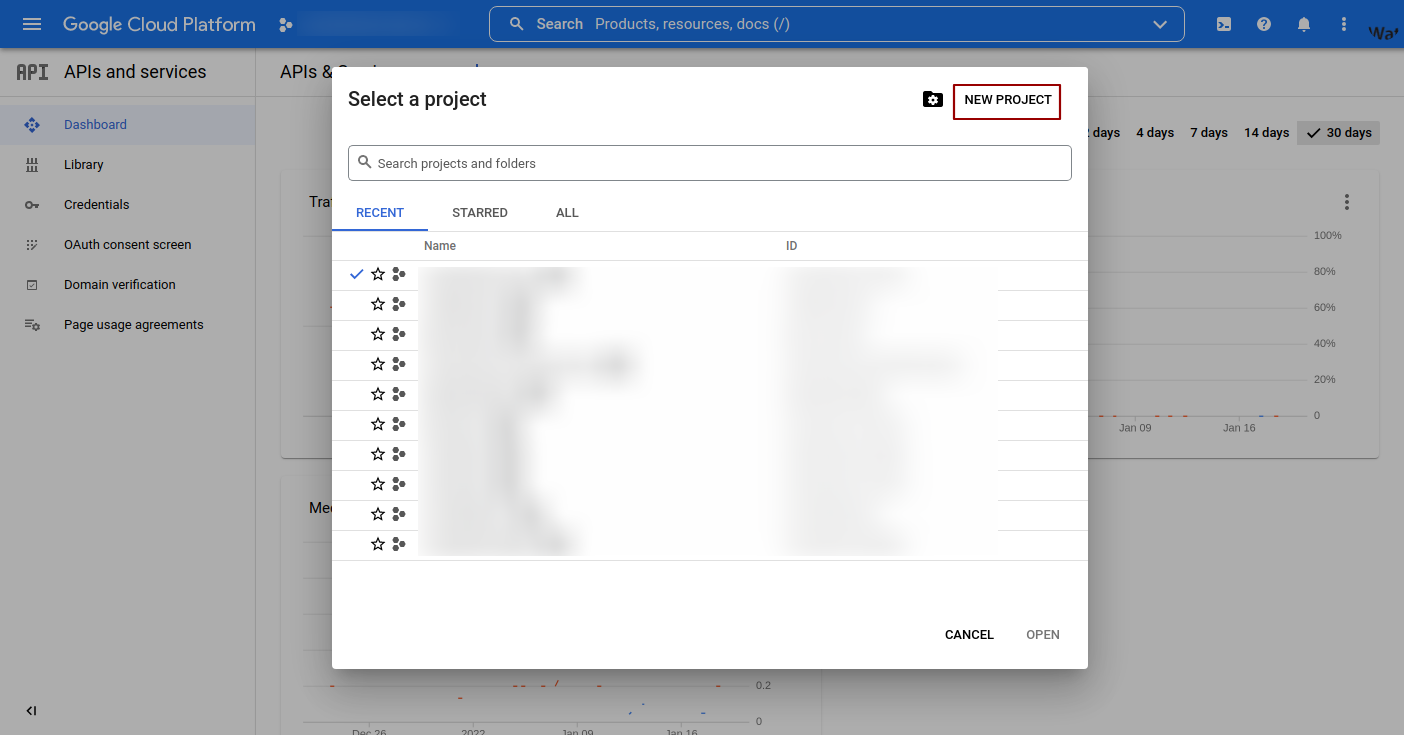
Navigate to console.cloud.google.com/
Login with your Google account
Select “New Project”
Fill in the New Project Form
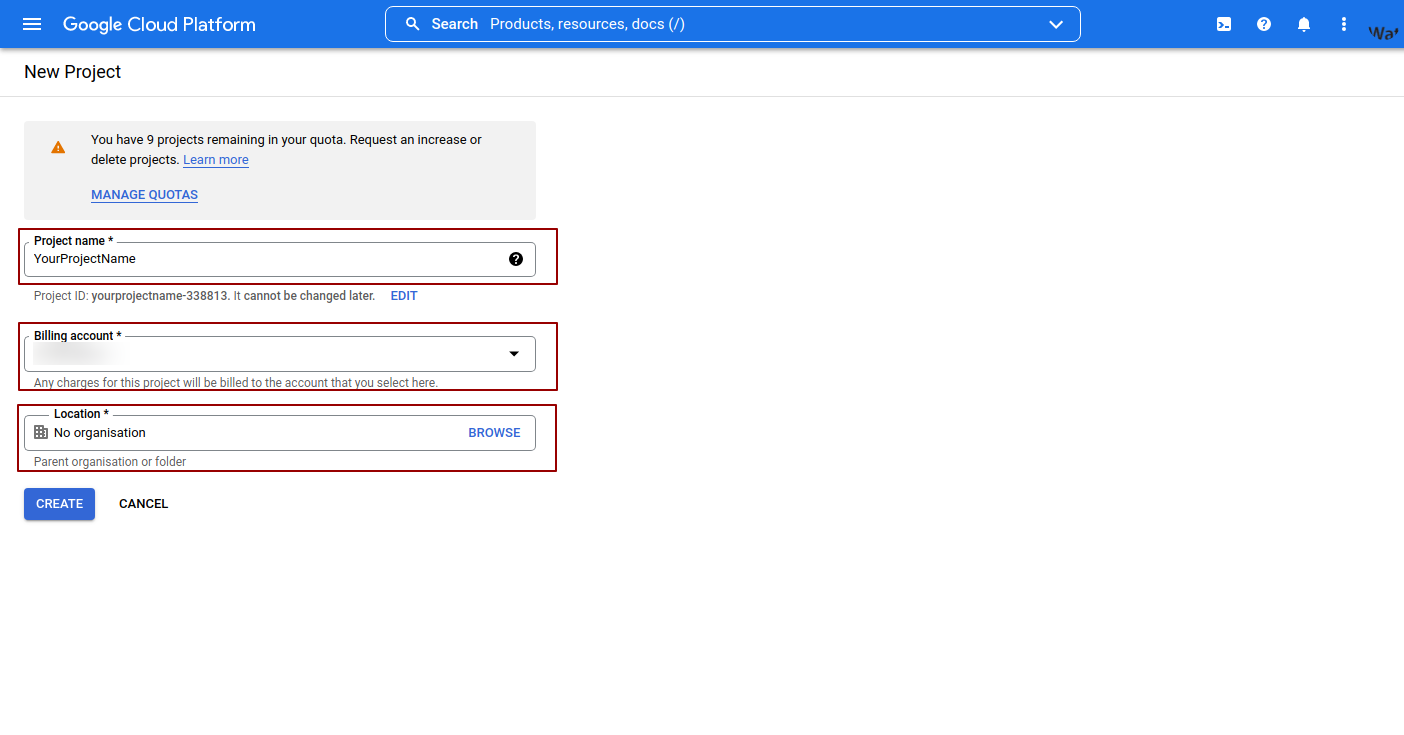
Give the project a memorable name
Select a billing profile to determine how API usage will be paid for – you will need to set this up in your Google Account. Google Maps pricing can be found here and includes 28500 map loads free of charge.
Select an Organization or accept the defaults
Note: You must have Billing enabled for the project.
Enter APIs Selection Screen
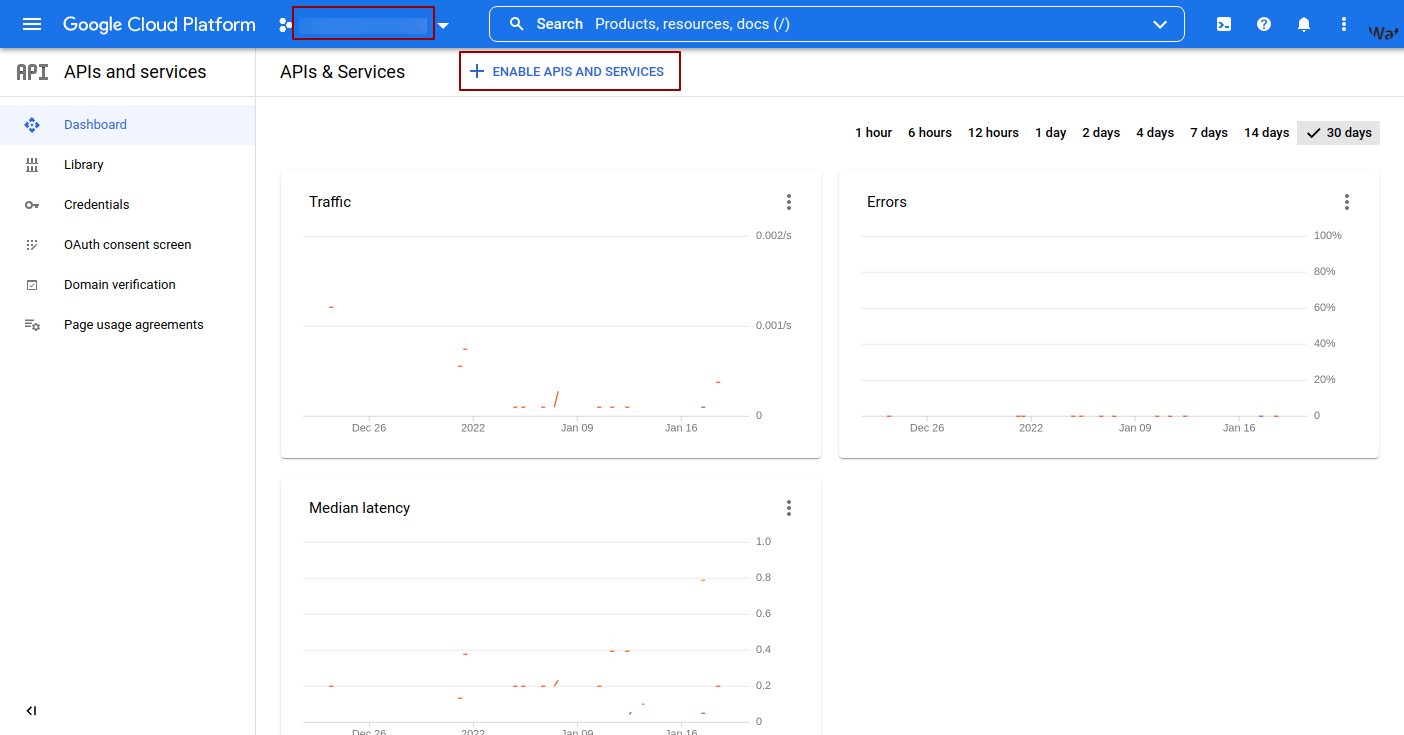
Make sure your project is selected in the Project selector
Click “+” next to “Enable APIs and Services
Select “Maps Javascript API”
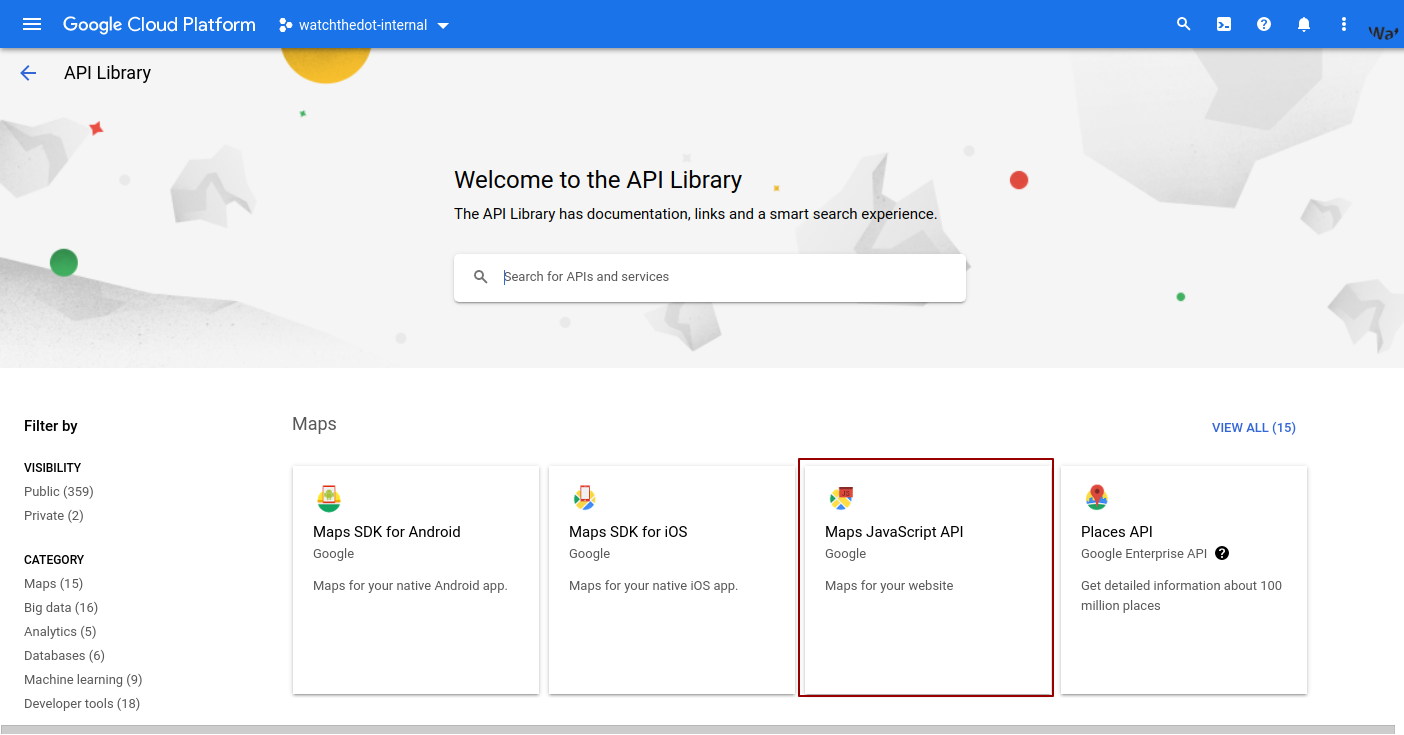
Select “Enable”
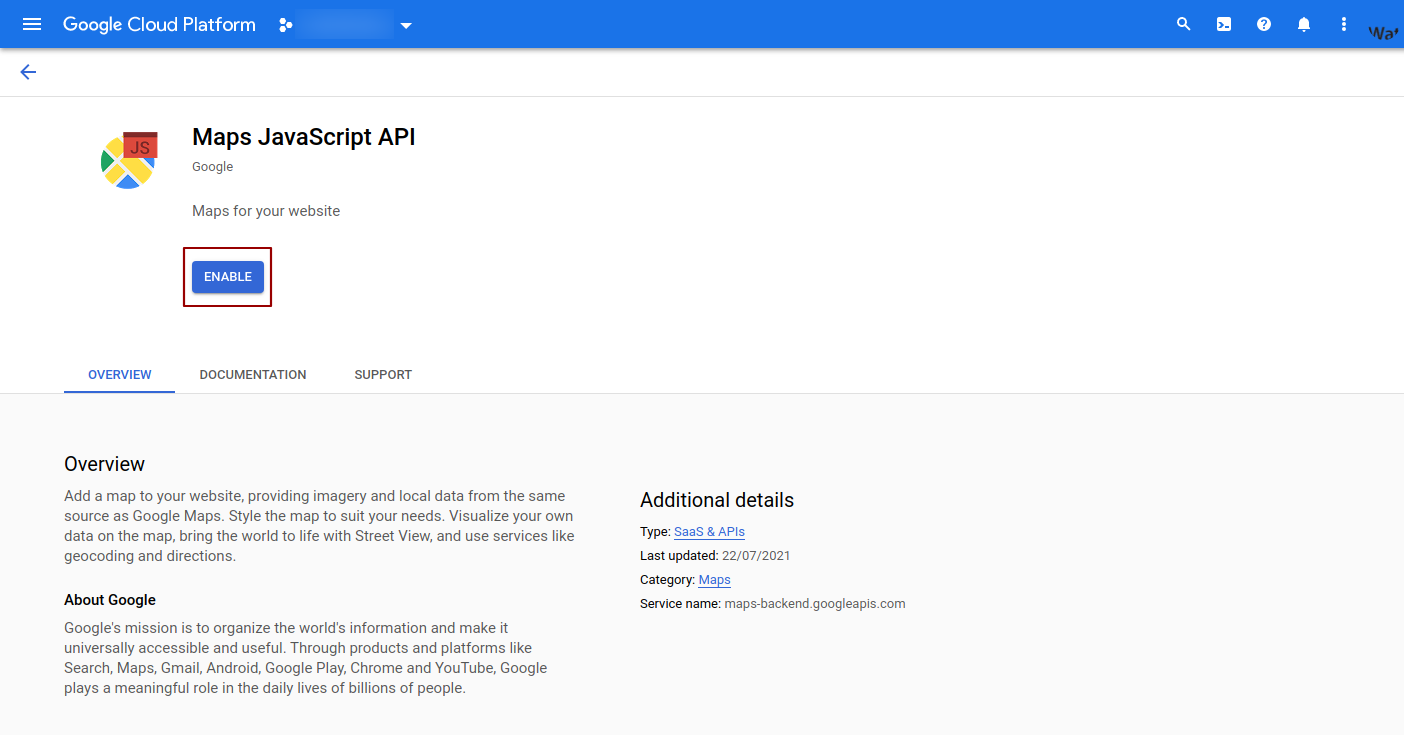
Create “Credentials”
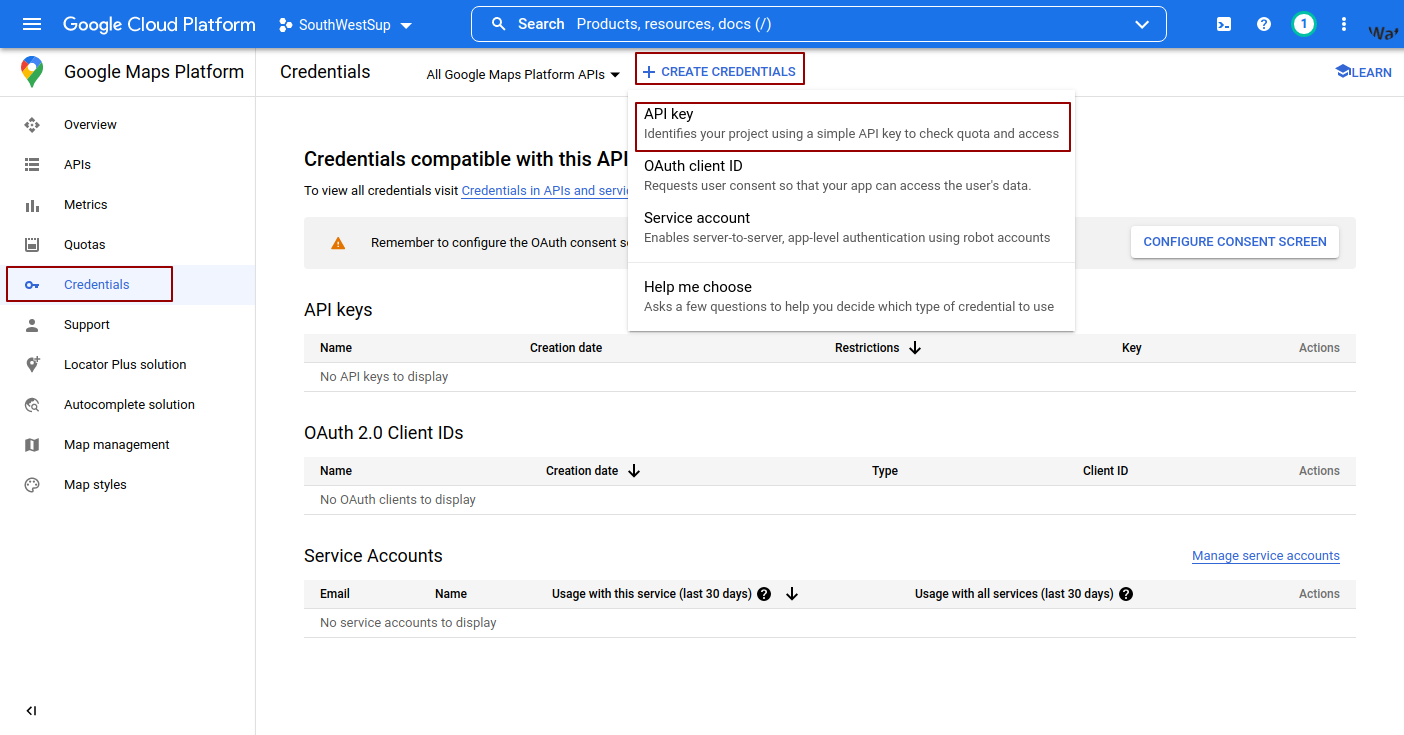
Select “Credentials”
Click “Create Credentials”
Select “API Key”
Copy API Key and Install on Website
Installation of API key will depend on you Website. many WordPress themes include a space within the theme options for the Google API Key.
Bonus – Installing Google API Key on Divi Theme
Login to your WordPress Dashboard
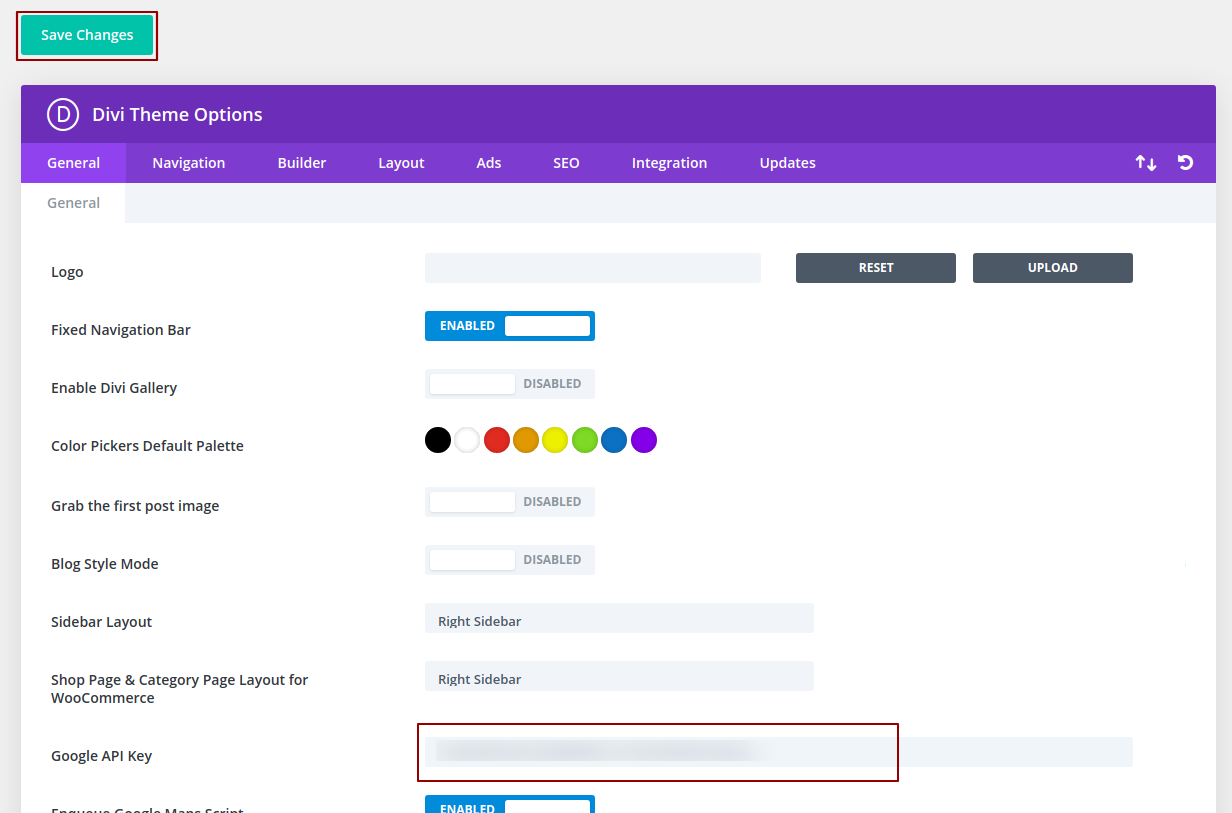
Navigate to Divi > Theme Options
Copy API Key into “Google APi Key” Field
Don’t forget to Save!