
WordPress is a fantastic Open Source system powering over 40% of the World’s websites. This makes it a great target for hackers. A hack isn’t usually personal – bots are sent to probe websites looking for known security holes. On finding a security hole, a hacker will install code (usually automatically) to repurpose the website as a Spambot, or use it to host links to pornography sites, sell fake viagra, advertise knock off designer goods or some other sort of shady content.
Sometimes a hacker will install malicious code within your WordPress website, a bit like a virus – difficult to find and tricky to eradicate. Other times, the hacker will just delete your site and replace it with their own. They usually don’t have the good manners to make a backup for you first (are you backing up your site? See link further down for help if not).
Luckily WordPress’ mass adoption means that security patches are released multiple times a day. Installing these is simple, but you will need to take a bit of care.
Login to your WordPress Dashboard
How to: How to Login to your WordPress Website
Essential: Backup your website first
WordPress maintenance will make changes to your code and files. These changes are destructive, so if something does go wrong, you will need a backup. In fact, make two backups! Fixing an issue without a backup my be expensive – or even impossible. This should not be considered an optional step!
How to: Backup your website with Updraft Plus
Update WordPress Core
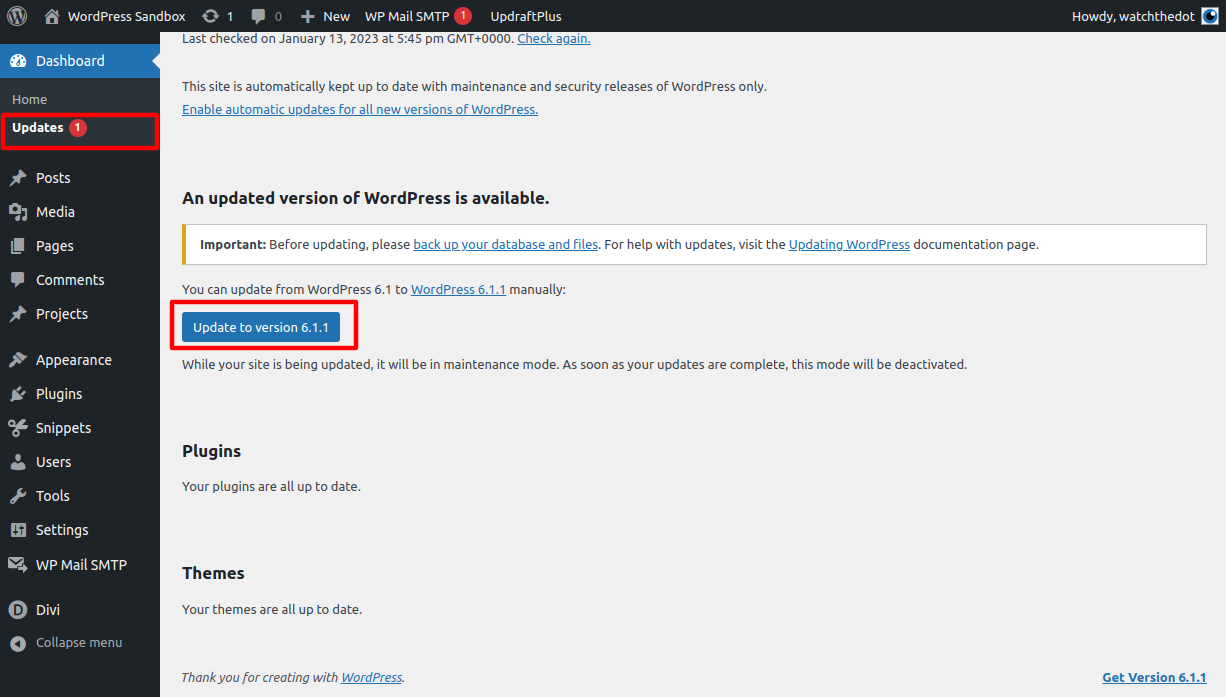
Navigate to Updates in your WordPress dashboard
Click the Update Button
Update WordPress Themes
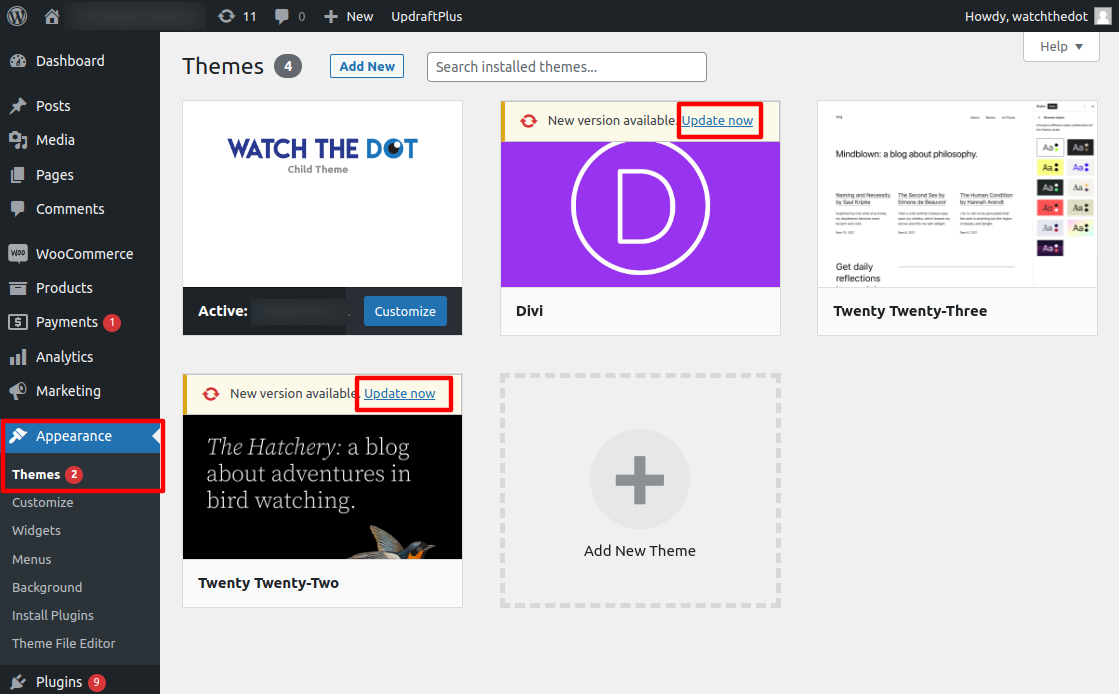
Navigate to Appearence > Themes
Click the Update button on each theme
Update WordPress Plugins

Navigate to Themes in your WordPress dashboard
Update each plugin using the Update link beneath the plugin name
We recommending reading the release notes before performing an update as plugin updates can include breaking changes, particularly when updating major versions (eg v1.9.9 -> v2.0.0)
If things go wrong
Sometimes the site may get stuck in Maintenance Mode – see link below to solve
Restore from backup if the site is inoperable
Submit a Support Request if you need help. You did back up first didn’t you?
How to: Stuck in Maintenance Mode
Perform one off WordPress Maintenance
Order our paid support product