
WordPress is accessed via a web browser. To use WordPress effectively you must be comfortable using and finding your way around a web browser. A web browser is an application that exists on a computer or a mobile device and can be accessed in your application launcher (this may be your start menu or “finder”).
Common web browsers include:
- Google Chrome (available on most devices)
- Microsoft Edge (available on Windows devices)
- Safari (available on Apple devices)
- Firefox (available on most devices)
These all essentially work in the same way with some small changes to the interface. The principles will be the same across all browsers.
The Web Address or URL
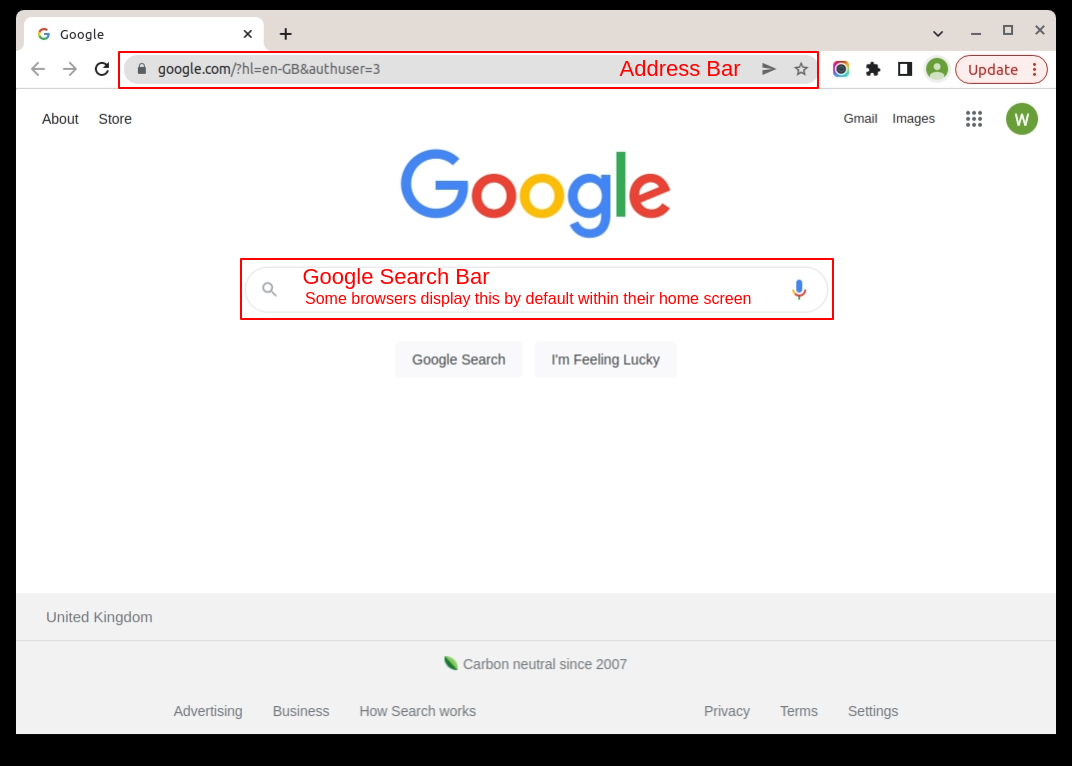
- Websites are accessed via a web address, also known as a URL (Uniform Resource Locator).
- A full web address looks like this: https://www.example.com
For example:
- Google: https://ww.google.com
- Youtube: https://www.youtube.com
- Amazon: https://www.amazon.co.uk
Each page on a website also has it’s own unique URL which is usually the web address with some further information after a / character: For example:
- BBC News Home page: https://www.bbc.co.uk/news
- YouTube Gannam Style: https://www.youtube.com/watch?v=9bZkp7q19f0
Page URLs can be either quite simple or quite complicated depending on the system the website uses and how the information on the website is arranged. A browser has an address bar at the top of the window. When accessing a website using the web address, you enter the address here. Most browsers will allow you to enter an abbreviated version of the full web address (eg google.com, rather than https://www.google.com) Some browsers have Google, Bing or other search engines embedded within their home screen. This is for a web search and although entering a web address in this box will usually work, it can’t be guaranteed. As an analogy, if a web browser was a telephone, the address bar is the dial pad, the search box is directory enquiries.
Browser Tabs
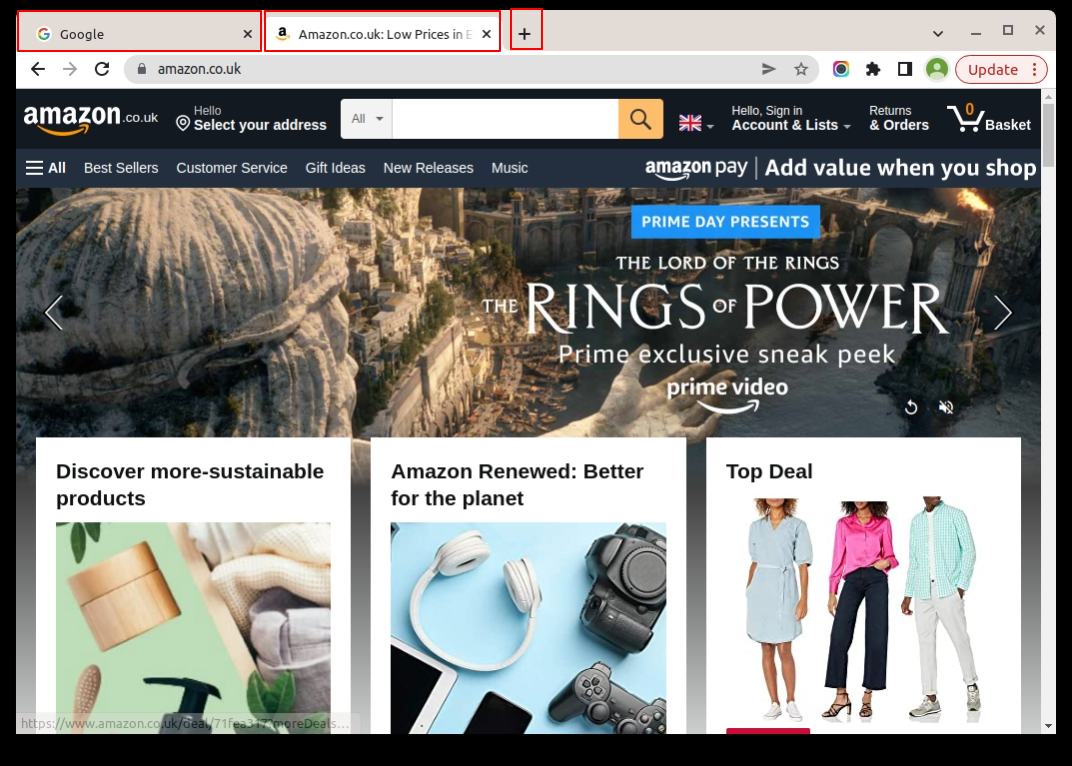
A modern browser can display information about more than one web page at a time.
Multiple pages are stored and switched between using tabs.
Tabs are displayed along the top of the browser window, usually above the address bar
The title of each webpage is displayed within a tab and can be switched between by clicking the required tab with a mouse
A tab can be closed by clicking the X character on a tab
A new blank tab can be opened by clicking the + sign to the right of the open tabs. A new tab can be used with the address bar to access website
Too many open tabs can use up memory and slow down your computer so it is advisable to keep these within a manageable amount
Moving back and forward
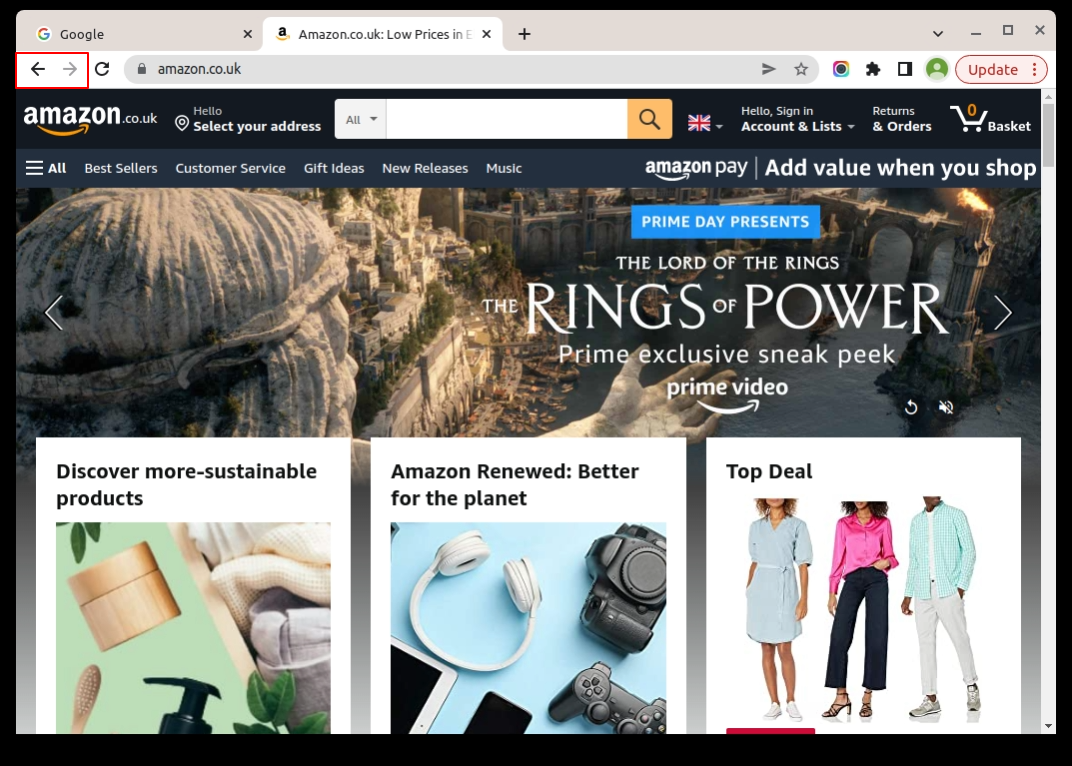
You browser keeps a history of the web pages you have visited
You can move to a previously visited page by clicking the left pointing arrow (known as the Back Arrow)
If you have moved back in your page history you can also move forward using the right pointing arrow (Forward Arrow)
Refreshing a Page
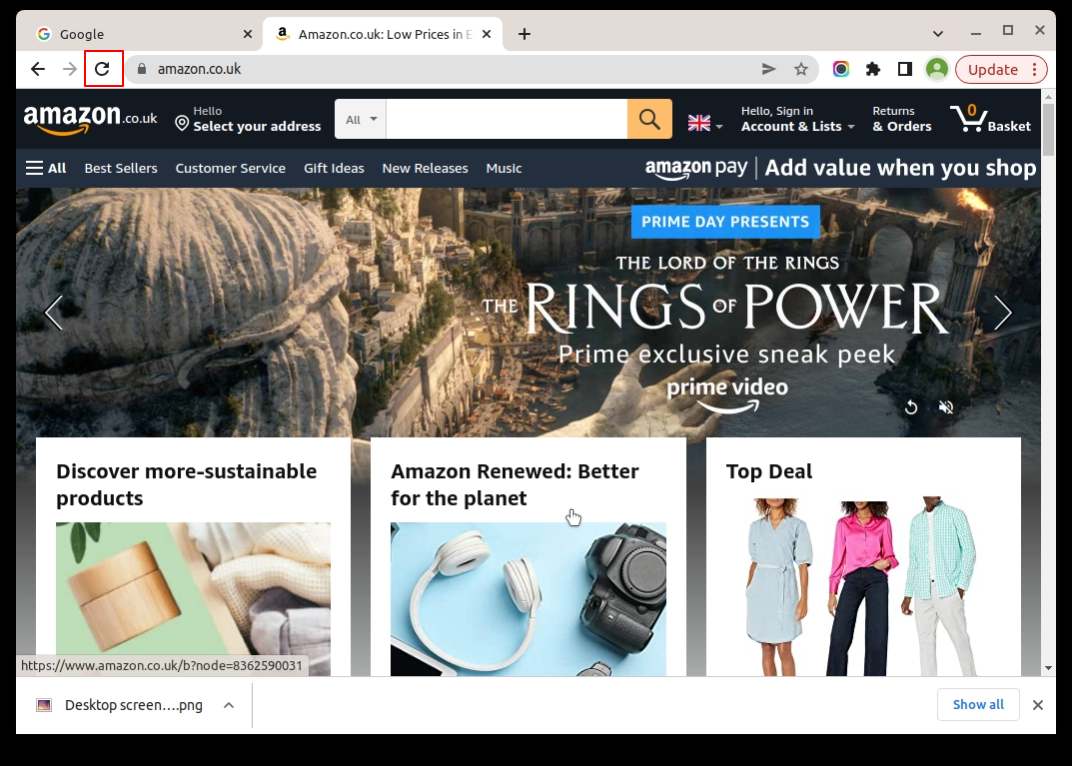
A web page can change at any time although your browser may only show a snapshot of the page at the point when you loaded it
The Refresh button reloads a page from the web server to retrieve the latest version
This is useful when looking at fast moving news websites or when making changes to your own website
Note: Some websites reload pages or page content automatically without a need for the refresh button. Social media sites are a good example of this.